The Autodrom app keeps your car’s paperwork, costs and history in one place and connects you with services nearby.
Install the app and sign in
Download Autodrom from the App Store or Google Play and create an account. Want to look around first? Tap «Try the demo» on the sign-in screen — it needs no account and uses sample data.

 Available in Estonia, Spain and Germany. More countries are coming soon.
Home: your car at a glance
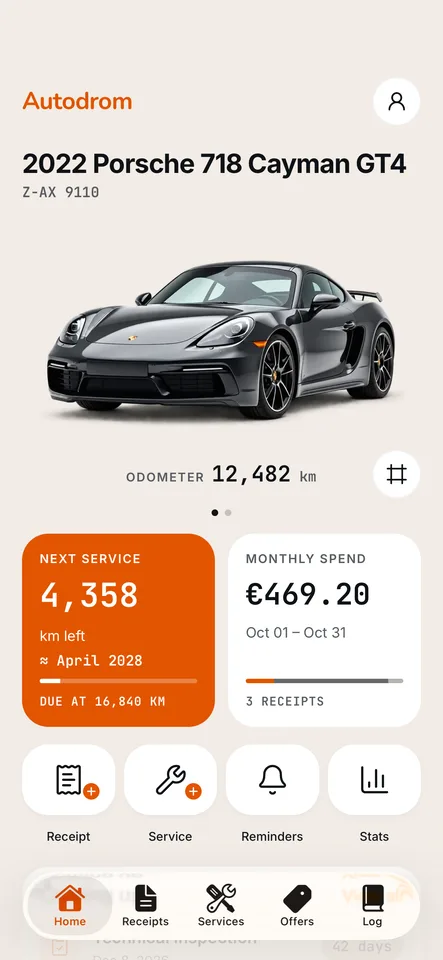
Add your car, and Home shows its mileage, how far it is to the next service and what the car has cost you this month. With several cars, swipe between them.
Receipts: photograph and forget
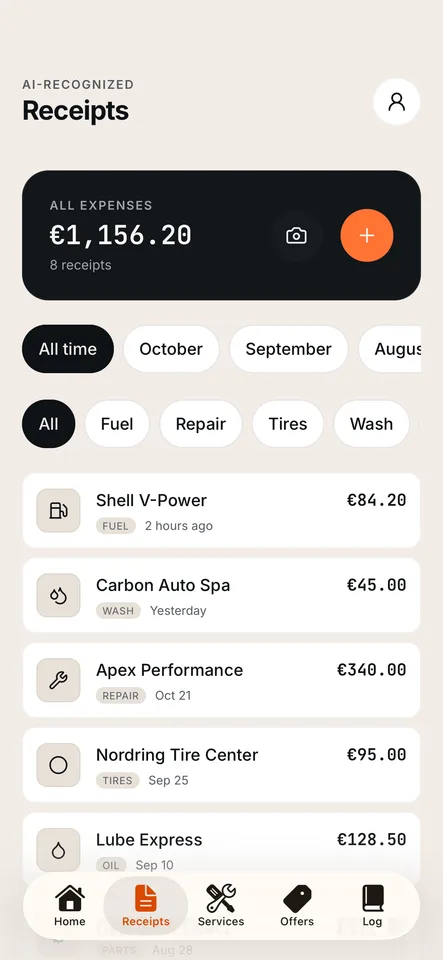
On Receipts, tap the camera and photograph a receipt: the text is recognised on your phone — the shop, the date and the amount. Check the fields and save. Filter all your expenses by month or by type: fuel, repairs, tires, washing.
Service book: the car’s whole history
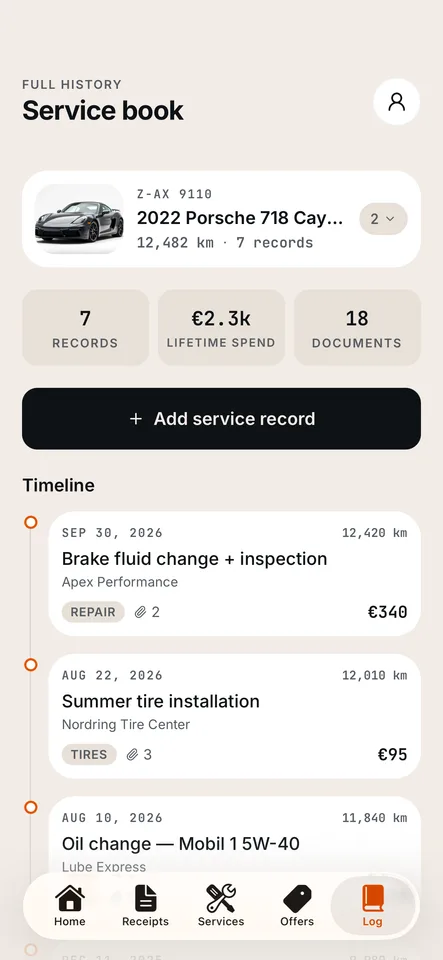
Log keeps every repair, tire change and oil change with the mileage, the price and the documents; «Add service record» adds a new one. When you sell the car, share its history with a link — it expires on its own, and you can revoke it.
Reminders: never miss a date
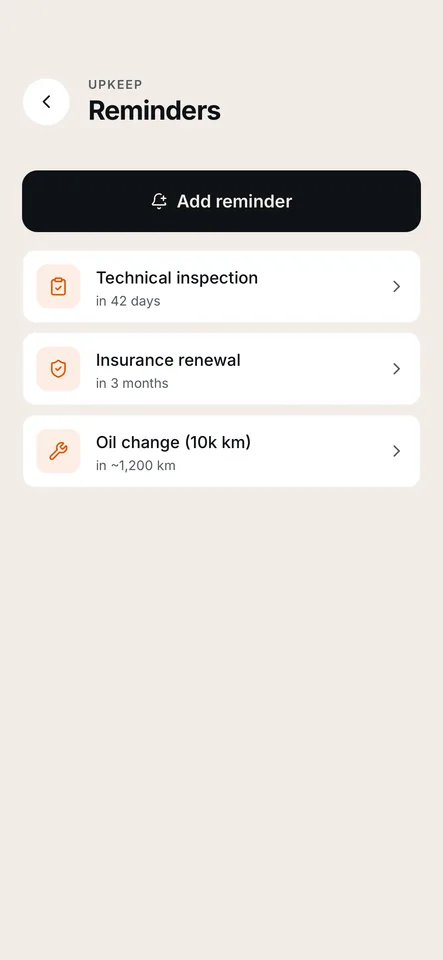
Open «Reminders» on Home and add the technical inspection, the insurance renewal, the next service or a reminder of your own. A service reminder can be due by date or by mileage.
Find a service and send a request
On Services, find a service nearby by work, price or distance. Open its card, pick the works and a time that suits you, and send a request. It is a request for a price, not a booked slot.
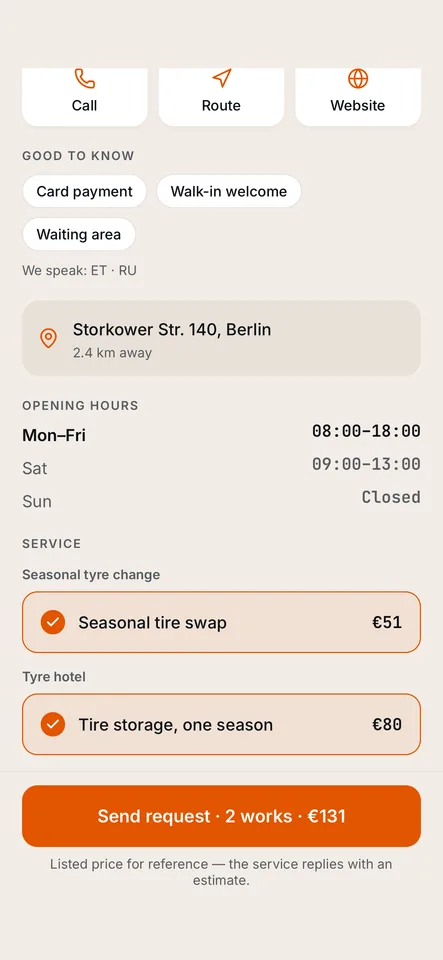
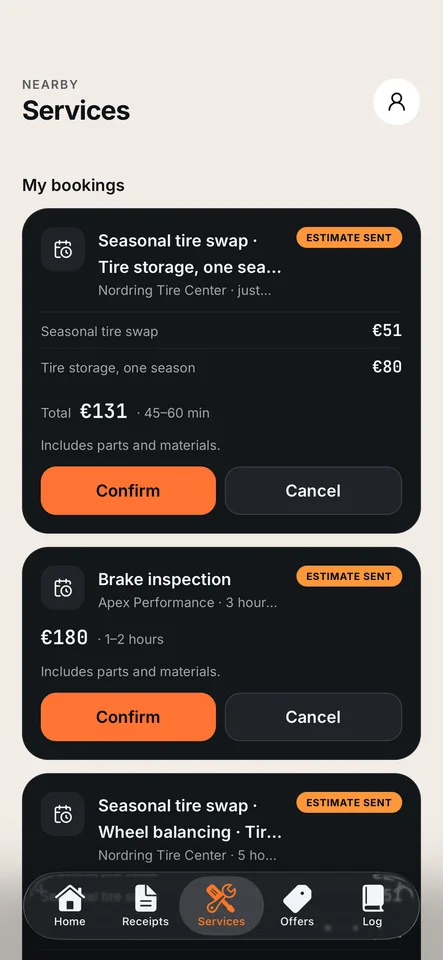
Confirm the estimate
The service answers with an estimate: the price and how long the job takes. You find it in «My bookings» at the top of Services. Confirming agrees to the price — the exact time is agreed with the service — or you can cancel the request.
Offers: deals from services
On Offers, services sell their works at a discount, and you buy them right in the app. Say a service usually costs €100 and its offer is €70 — 30% off: you pay €70 in the app, show your code at the service and save €30. An unused purchase can be refunded within 14 days. Offers need a real account, so the demo does not show them.
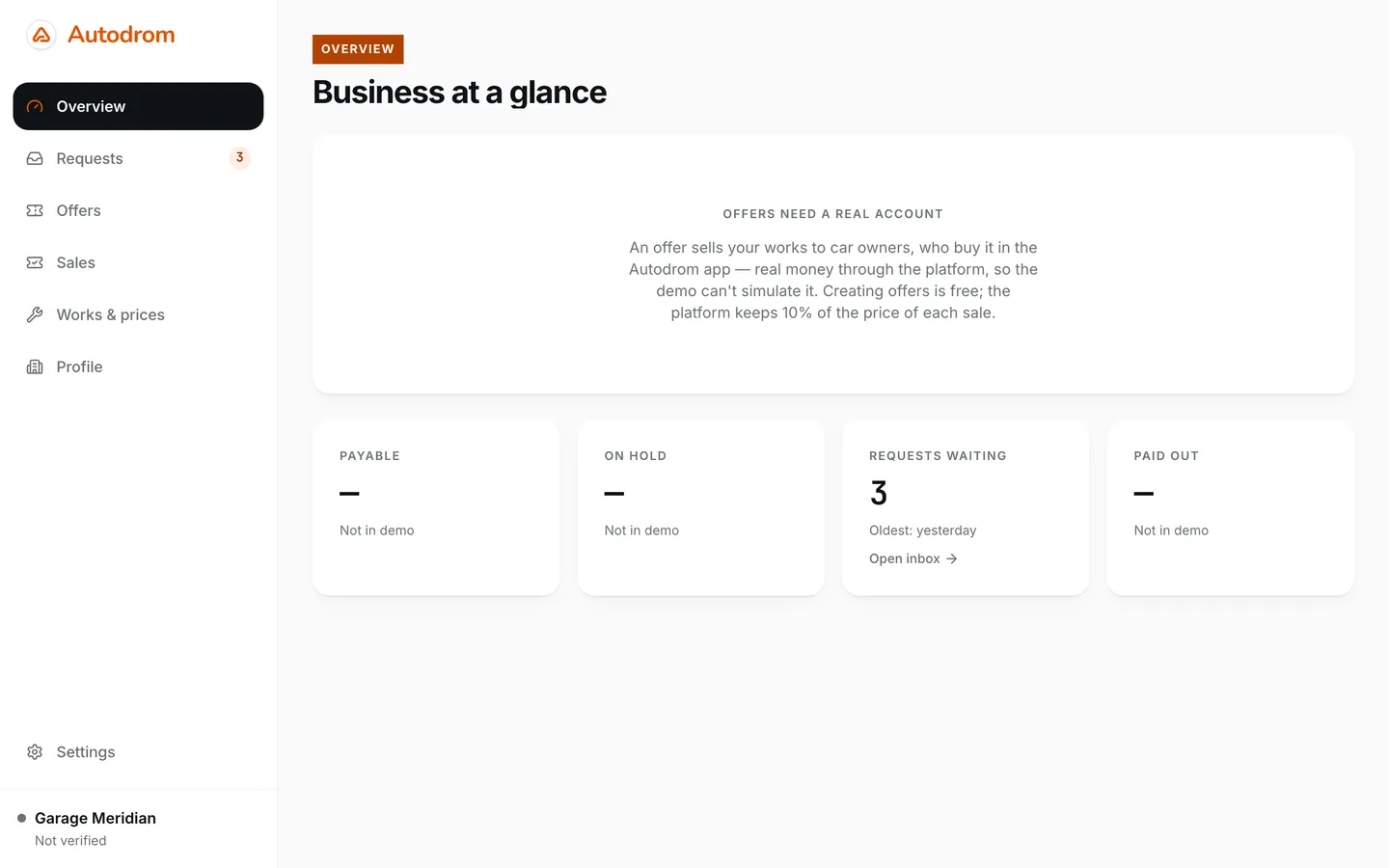
The service app runs in a browser, on a computer or a tablet. It is where you keep your public card and prices, answer requests from drivers and sell offers.
Get access
During the launch, businesses join Autodrom by invitation: write to us, and we will send the invitation to your e-mail. To look around first, press «Explore the demo» on the sign-in page — it runs in your browser with sample data and needs no account.
Sign in at partner.autodrom.app.
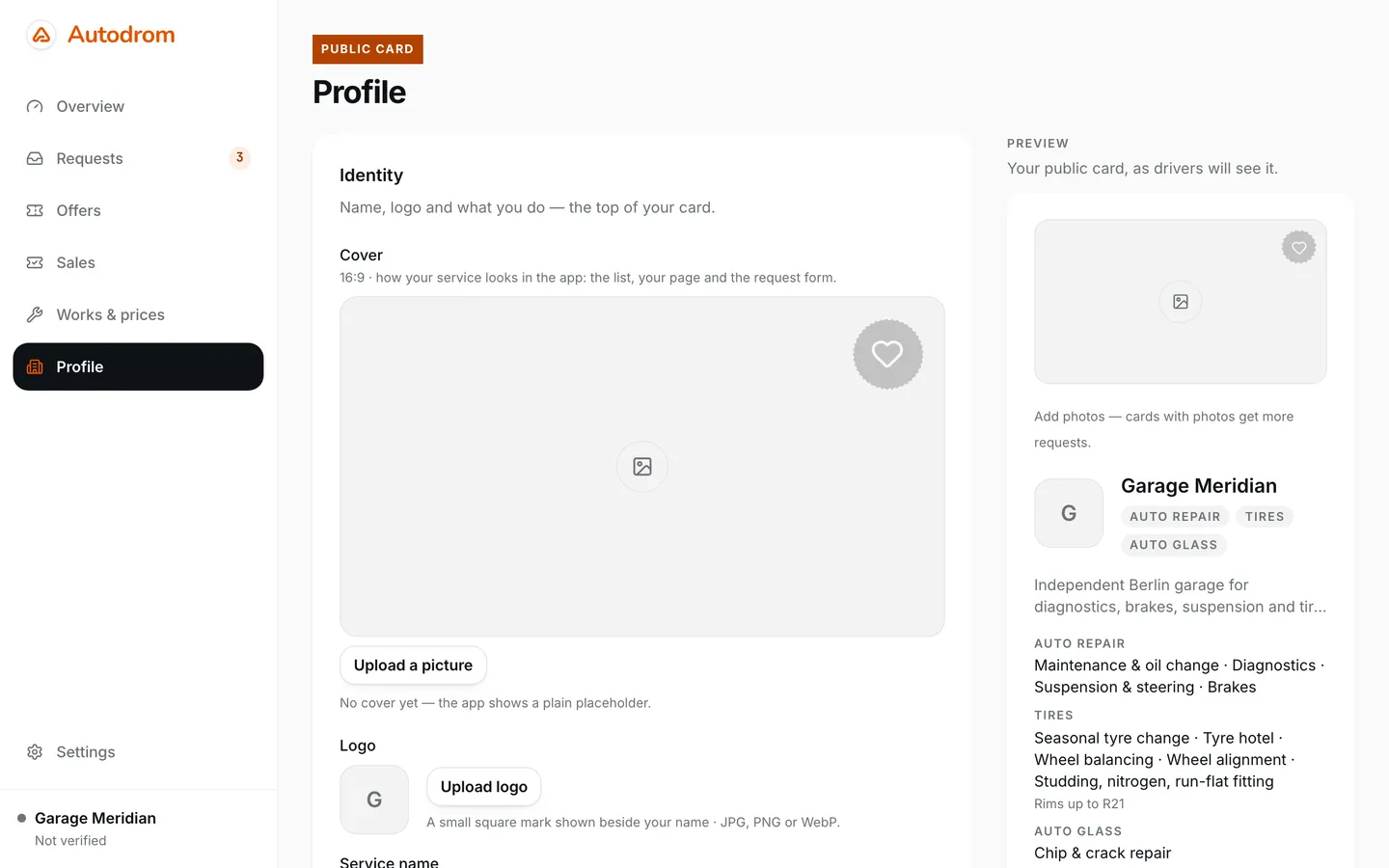
Fill in your public card
In Profile, add a cover photo and a logo, describe what you do, and fill in the address, the phone and the opening hours. The preview beside the form shows the card exactly as drivers see it in the app. Drivers see your service only after we have verified it — we do that by hand.
List your works and prices
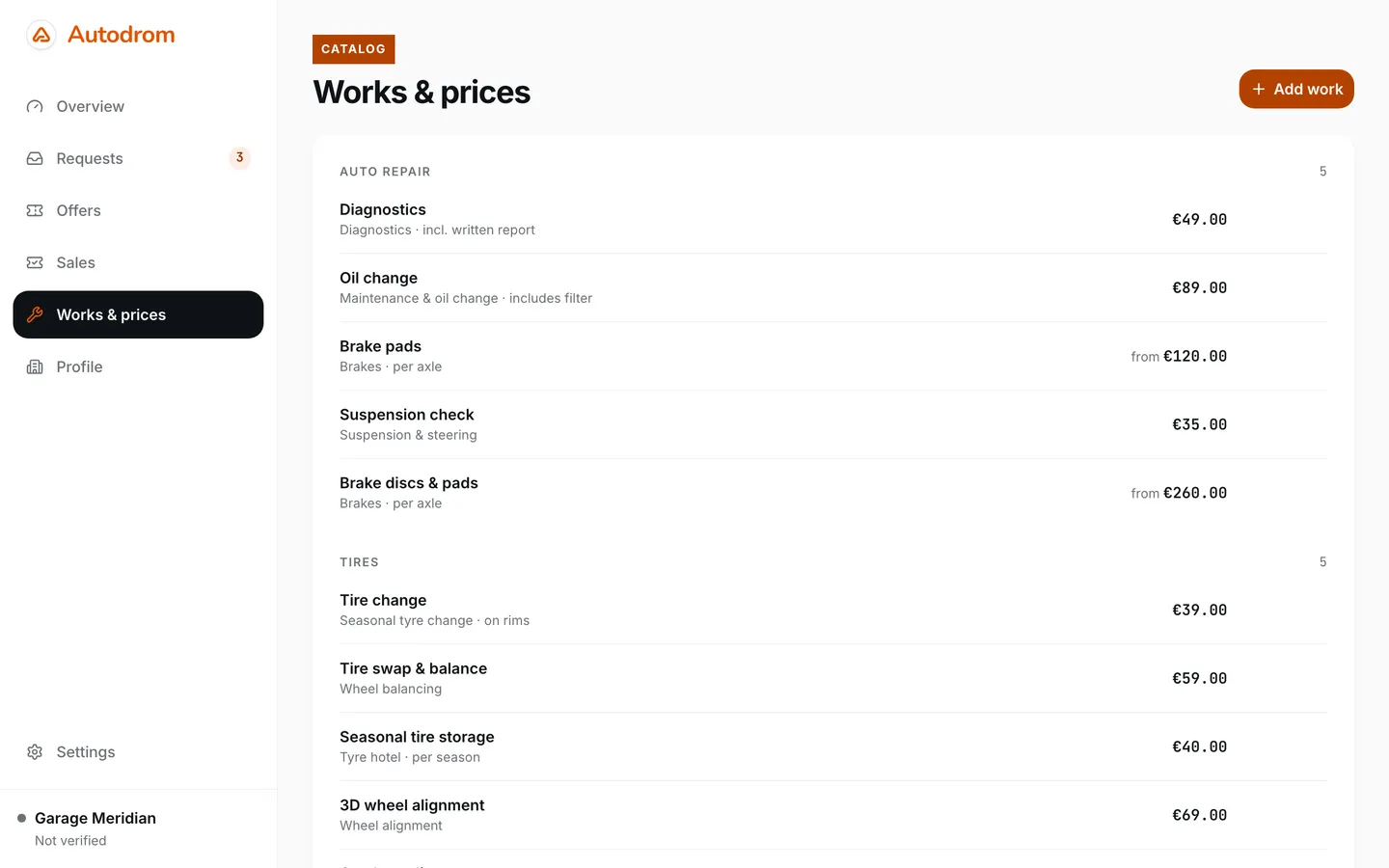
In «Works & prices», press «Add work», name it, pick the category and the kind of work, and set the price — or a starting price. Drivers find you by these works, and your offers are built from them.
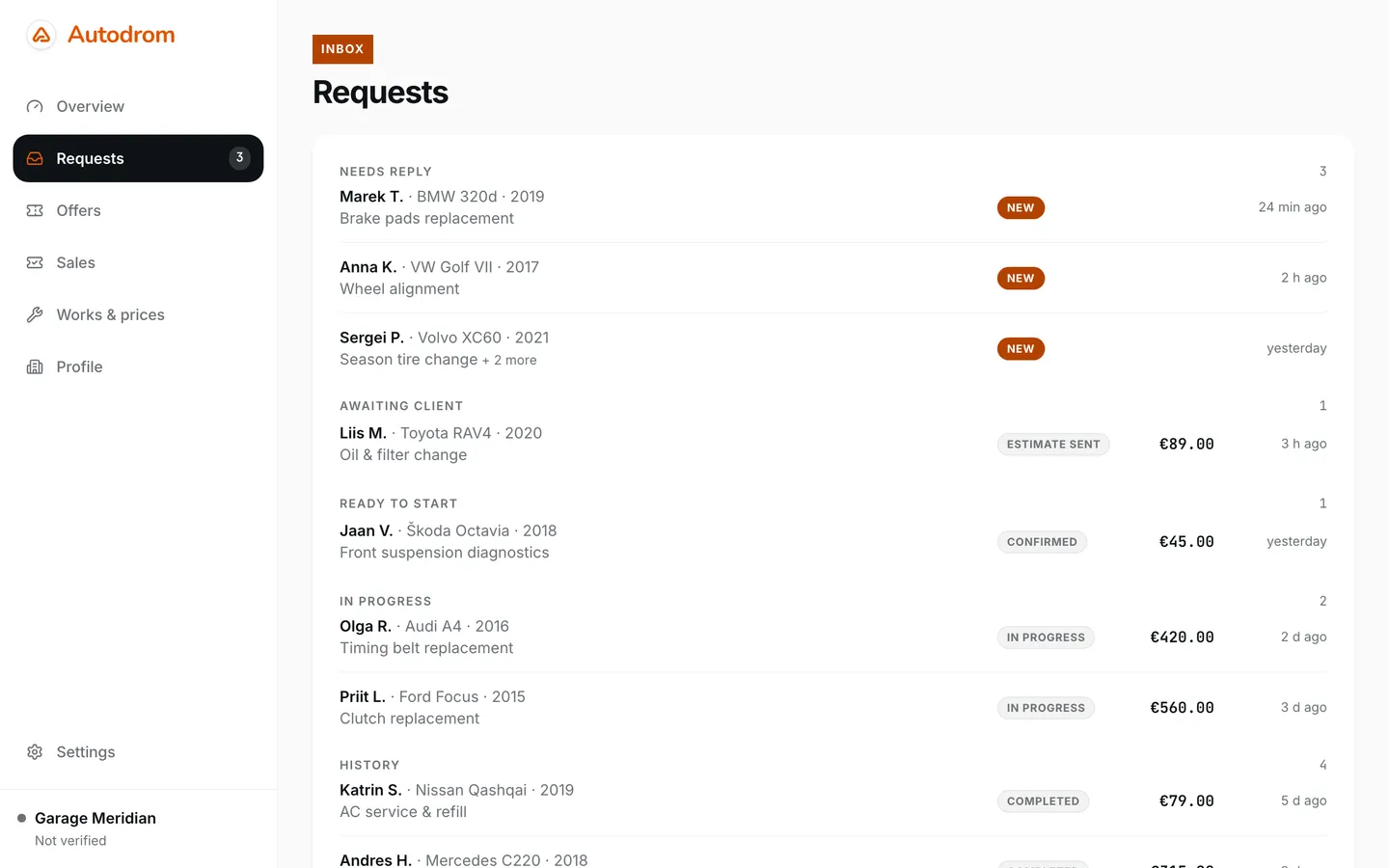
Every request in one inbox
Requests from drivers land in «Requests», grouped by what needs your attention: needs reply, awaiting client, ready to start, in progress. Open one to see the car, the works, the preferred time and the client’s note.
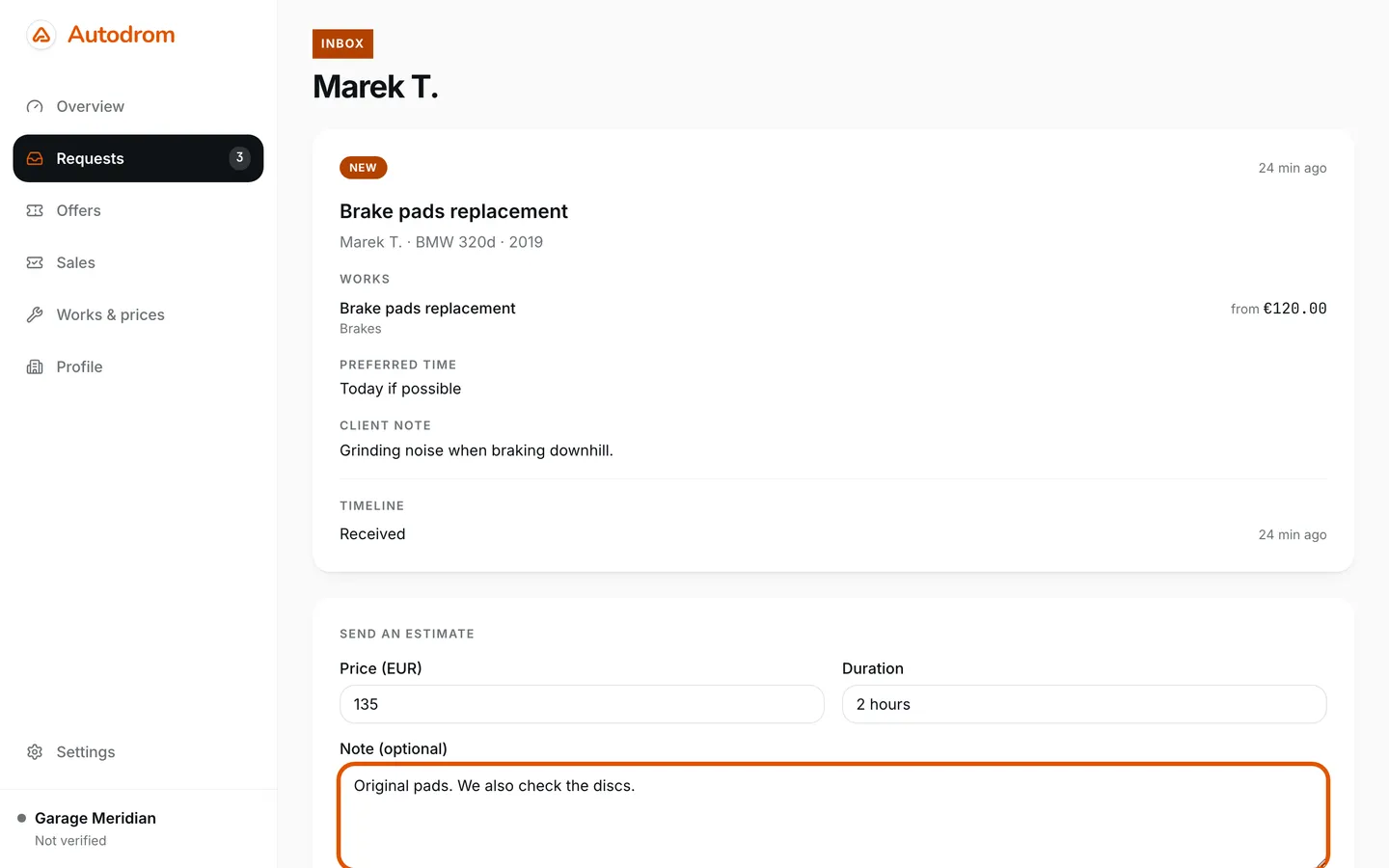
Answer with an estimate
Under the request, enter the price, how long the job takes and, if you like, a note — parts, warranty, pickup — and press «Send estimate». The driver gets it in the app and confirms the price. A job you cannot take, you decline.
Take the job to the end
A confirmed request moves to «Ready to start». When the car is in, press «Start work»; when the job is done, «Mark completed». The inbox always shows where every car is.
Sell offers
In Offers, build an offer from your works: the discount, how many you sell and the dates. Creating offers is free; drivers buy them in the Autodrom app. Say a service costs €100 and you offer it for €70 — 30% off: the driver pays €70 in the app, you mark the visit in Sales, and Autodrom keeps 10% of the price — €7 — and sends the other €63 to your bank account. Offers need a real account — in the demo the page only explains them.
Redeem purchases and get paid
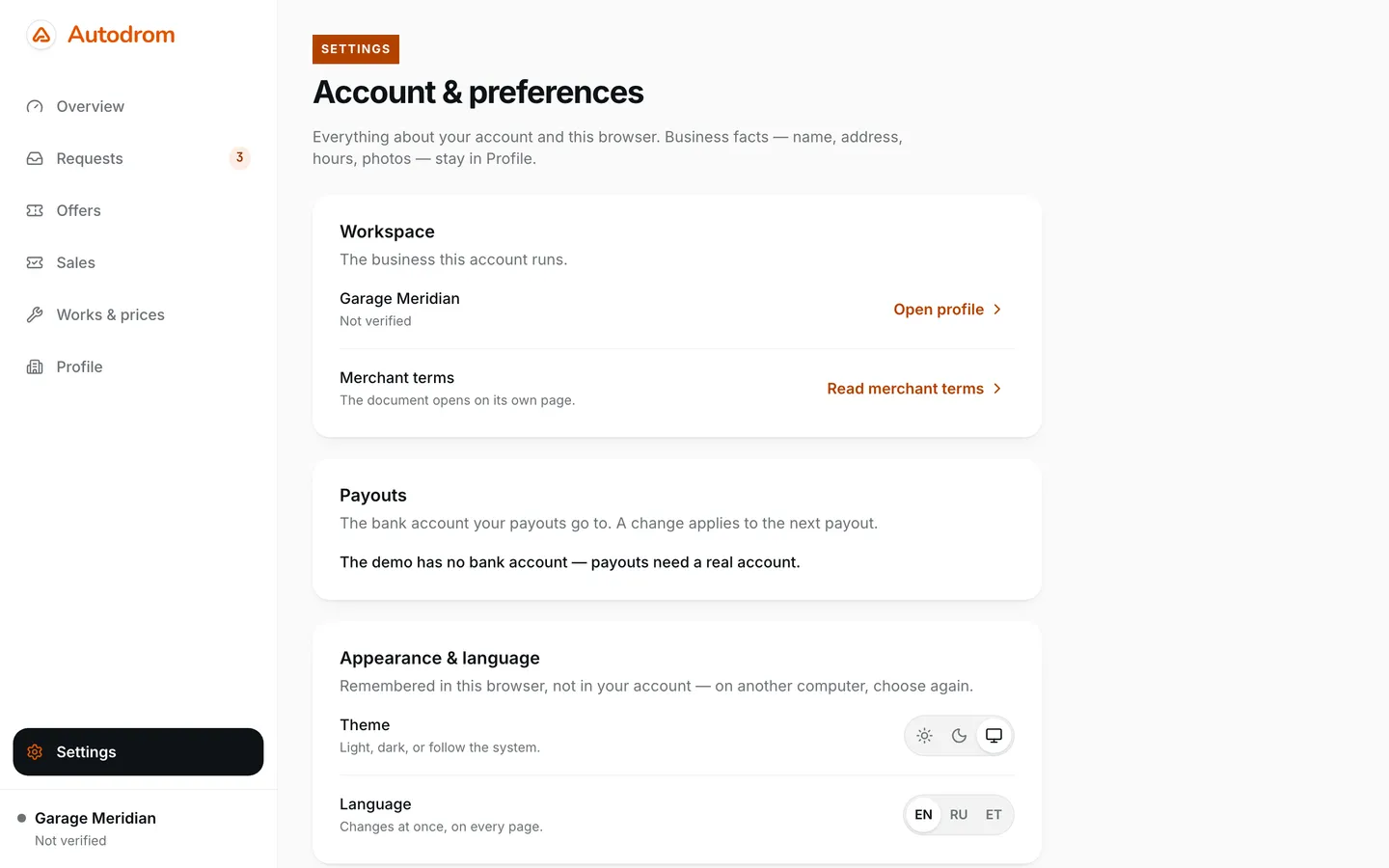
When a driver comes with a purchase, redeem it in Sales. Name your bank account in Settings → Payouts: Autodrom pays out what you have earned there, once you have delivered the service.
Something unclear? Our contacts are on the support page.